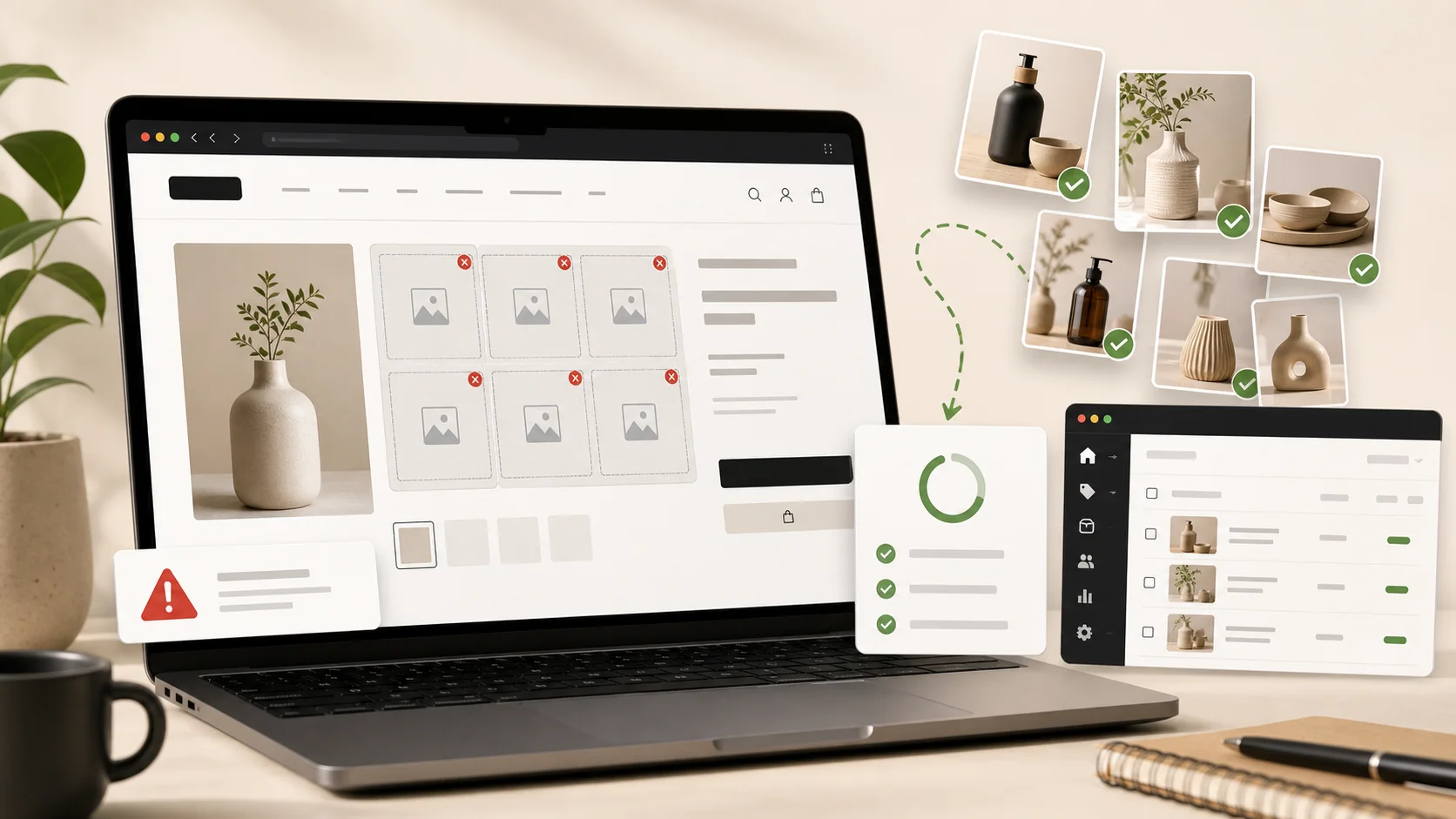
If you’ve landed here, you’re probably staring at a Shopify storefront where your photo galleries have suddenly stopped showing up — or worse, your customers are getting a scary browser security warning when they visit your product pages.
You’re not alone. Since late August 2025, dozens of Shopify merchants who’ve used Cozy Image Gallery for years have reported the same problem: galleries that worked perfectly for half a decade have gone dark, support emails go unanswered, and there’s no clear way to recover the photos.
This article explains what’s actually happening, what you can do right now to stop the bleeding, and how to recover your images even if Cozy never comes back online.
What’s actually broken
The technical problem is straightforward, even if the situation around it isn’t.
Cozy Image Gallery (developed by Pasilobus) serves your gallery images from its own servers, not from your Shopify account. When a customer visits your store, their browser loads the gallery JavaScript and the photos themselves from Cozy’s domain.
In late August 2025, the SSL certificate on Cozy’s servers expired or became invalid. SSL certificates are what make the little padlock icon appear in browsers — they tell visitors that a site is safe to load resources from.
When the certificate broke, three things happened:
- Firefox started blocking the gallery entirely, showing a security error to your customers.
- Chrome and Safari started showing mixed-content warnings on stores using HTTPS (which is all of them).
- The galleries themselves simply stopped rendering on most devices, leaving blank spaces where your photos used to be.
If you’re seeing any of the following, this is what you’re experiencing:
- Galleries that show up on your computer but not on customers’ phones
- Galleries that work in one browser but not others
- “Your connection is not private” warnings on product pages
- Photos that just don’t appear, with no error message
- A note from a customer saying your site looks broken
Why support isn’t replying
This is the harder question. We can’t speak for Pasilobus, but the public record across the Shopify App Store reviews is clear: support has been unresponsive for weeks. Multiple long-term customers report contacting Cozy through every available channel — the in-app help, the support page, direct email — and receiving no reply at all.
One merchant who finally did get through reported that the developer told them, in email, to find another app to use because they didn’t feel like the service was coming back online anytime soon.
We don’t know why this is happening. Developers are people, and people have things go wrong in their lives. What we do know is that if you’ve been waiting for support to respond, it’s time to assume they’re not going to, and start planning your recovery.
What you should do right now
In order of urgency:
1. Take a screenshot of every gallery you have
Open each page of your store that has a Cozy gallery on it. Take a screenshot of the page, even if the gallery is currently broken. This gives you a record of what photos were where, which is the most painful piece of information to recover later.
If your galleries are still rendering on at least one device or browser (some merchants report they work on computers where they previously visited the site), use that device to capture as much as you can before the cache expires.
2. Check whether you can still access the Cozy admin
Go to your Shopify admin → Apps → Cozy Image Gallery. If the admin loads at all, even slowly, click through every gallery and note down:
- Gallery names
- Image filenames (visible in the editor)
- Captions and alt text you’ve added
- Which Shopify pages each gallery is embedded on
If the admin doesn’t load, skip to step 4.
3. Try to download original images
If you can get into Cozy’s admin, each image should have a “download original” option or a direct URL to the full-resolution file. Save every image to a folder on your computer, organised by gallery. This is your one chance to recover the original quality versions.
If the admin is broken but galleries still render on some devices, you can right-click and save images from the rendered page, though you’ll get a smaller, web-optimised version rather than the original.
4. Remove the Cozy embeds from your live theme
This is the step most merchants skip and regret. Even if your galleries are broken, the Cozy code is still in your theme — and as long as it’s there, it’s loading broken resources on every page view, slowing your site down and potentially triggering more security warnings.
In your Shopify admin:
- Go to Online Store → Themes
- Click the three dots next to your live theme → Edit code
- Search across the theme for any file containing
cozy,pasilobus, orgallery-cozy - Comment out or remove these references (back up the theme first by clicking “Duplicate”)
If you’re not comfortable editing theme code, install a temporary “coming soon” banner on the affected pages until you have a replacement gallery ready.
5. Don’t uninstall the Cozy app yet
This is counterintuitive, but if your photos are still accessible through Cozy’s admin interface in any form, uninstalling the app may cut off that access permanently. Wait until you’ve recovered everything you need, then uninstall.
What to use instead
You have three real options:
Option A: Native Shopify gallery sections. Most modern Shopify themes (Dawn, Sense, Refresh) include built-in image gallery sections. These are free, reliable, and won’t break — but they’re often limited in layout options and customisation.
Option B: Robin PRO Photo Gallery. Klimo.io’s Robin PRO is the most popular paid alternative, rated 5 stars on the App Store. It costs $5/month for unlimited images. Importantly, Robin PRO hosts your images on Klimo’s own CDN, similar to how Cozy did — which is fine as long as Klimo stays operational.
Option C: A1 Image Gallery. This is our app, so we’ll be upfront about that. We built A1 Image Gallery specifically because of what happened with Cozy. A1 stores your images directly in your own Shopify Files, not on our servers. If we ever stop operating, your galleries continue to work, because the gallery code lives in your theme and the images live in your Shopify account. We also built a one-click migration tool that automatically imports your existing Cozy galleries — including images, captions, and alt text — and replaces the broken Cozy embeds in your theme.
We charge $4/month for unlimited galleries, or you can use the free plan for up to 12 images.
What we’d tell our own friends
If you came to us as a friend with this problem, we’d say:
- Recover everything you can from Cozy first, regardless of which app you pick next. The image files are the only thing you can’t easily replace.
- Then pick the gallery app that won’t put you in this exact situation again. That means asking: where do my images actually live, and what happens to my store if this company stops operating?
- Get back online quickly. Every day of broken galleries is sales you’re losing. You can always switch gallery apps again later; you can’t get back the customers who saw a broken site today.
We’re happy to help with the recovery even if you don’t end up using A1 Image Gallery. If you’ve been hit by the Cozy outage and you’re not sure what to do, email us at hello@a1apps.net — there’s a real person on the other end, and we’ll help you get your photos back regardless of where you decide to go next.
If you want to try A1 Image Gallery’s automatic Cozy migration tool, you can install it from the Shopify App Store here. It works even if Cozy is currently offline — we can recover images directly from your rendered storefront where the originals aren’t accessible. The tool is free to run; you only pay if you decide to keep using A1 Image Gallery after you see your galleries restored.
A1 Image Gallery is built by A1 Local, an independent Shopify development studio based in Perth, Australia.